Imaris
#Imaris Booking System
On each client, that runs imaris v10 or later, a license software must be installed that communicates with the license server. Only a single running imaris instance is allowed. As long as this runs, other attempts to start imaris are blocked by the license server. An online booking calendar for license usage is maintained by the microscopy core facility. An account for this can be requested here:
https://ppms.eu/tuebingen/areq/?pf=4
Fill up the form, using only official e-mail (requirement by the MFT dean’s office due to data protection) and submit. If you can’t find the name of your group in the list, select AG Oleksiuk, then your real group will be created. After approval of your PPMS-account you will get a confirmation e-mail.
rlm license manager web interface: http://134.2.114.54:5054/home.asp
Read here how to reset the license server.
#Setting up Imaris (version 10.0.x and higher)
- Login as administrator on the machine you like to use Imaris on.
- Download Imaris from the downloads section at the HIH fileserver.
- Start the setup program and follow the instructions.
- Start Imaris
- The License Settings Dialogue will appear
- License installation
- start 'Configurator' by clicking on the 'C' icon.
- In the new window, select 'License - Install / Upgrade License'
- Now choose 'Define Floating License Server'
- Contact HIH IT Core facility and ask them for the imaris Order ID.
- Enter the floating client license Order ID you got from the IT and press ‘Download Client License’ to install the node locked license which allows using a floating license. The OrderID is identical for all your machines. Do not share this ID to anyone.
- Enter the ‘Floating License Server Name’ (this is the IP-Address 134.2.114.54 of the HIH imaris license server) and the port. (Default port is 2700).
- Press 'Install Licenses' (You may need to enlarge the window to see the ‘Install Licenses’ button)
- System Preferences
The preferences can be set by the Administrator and enforced to the users. Please check the 'System Preferences' section. For optimal performance, make sure the 'Texture Cache Limit' is set to the physical size of the graphic board memory. The default graphics RAM is now automatically detected, and the user is not any more requested to set it, but the automatic does not work in 100% of the cases. 'Number of Threads' and 'Data Cache Memory Limit' are normally set to good defaults. Please change them only if you are sure what the impact is. 'Cache File Paths' defaults to the user TMP environment variable. You may change this to a SSD with plenty of free space (10 times the largest data-set you like to process).
- Hit 'OK' then 'Finish' and finally 'Start'. Imaris should then start.
In case you purchased ImarisStitcher it can be downloaded and installed the same way.
#Installing Imaris version 9
You can download and install imaris v9 from our HIH fileserver: groups/Downloads/Software/Windows/Imaris/older_Versions/Imaris9_8_2w64.exe
In the license configurator choose "Define Floating License Server" and enter the "Floating License Server Name" (this is the IP-Address 134.2.114.54 of the HIH imaris license server) and the port number (Default port is 2700).
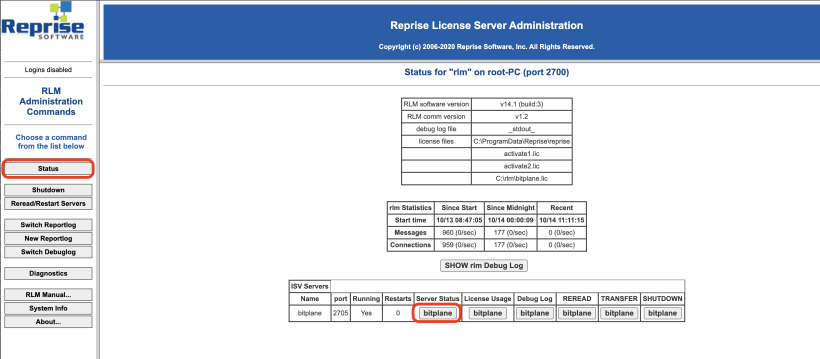
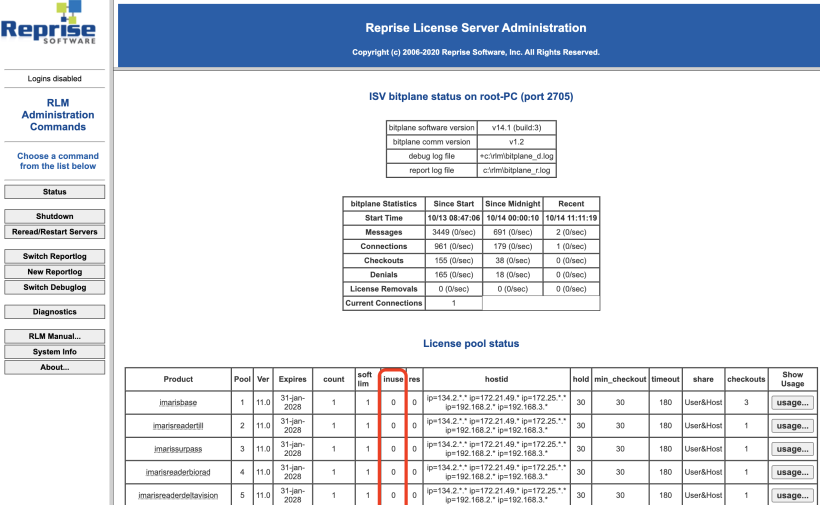
#How to check the license usage
Go to http://134.2.114.54:5054/home.asp
#Troubleshooting
#License server can not be connected via the license configurator app
Check, if there are other network interfaces active. The license server checks for the local client IP-Address to be in a certain range. If a wrong interface is used, the IP-Address might be in the wrong range.